
DeepL Alternative for Mac: Neural Lens, Offline Translation and OCR
Neural Lens is a free desktop translator for Mac and Windows. If you are looking for a DeepL alternative on Mac, compare how each tool fits what you read: selectable text, screenshots, web pages or PDF documents.
This guide is written by the NeuralLens development team and was reviewed on October 23, 2026. It describes the available workflows, not a measured ranking of translation quality or speed.
What changes when you use Neural Lens?
Neural Lens combines desktop text translation, screenshot OCR, translation history and document translation. Its separate browser extension translates selected webpage text in place with built-in Google and Bing engines.
For desktop translation, you can use built-in engines or configure a cloud provider such as OpenAI, DeepSeek or Gemini. A provider may require your own API key and charge for usage. Choose an engine using passages from the material you actually read, and check names, terminology and numbers against the original.
DeepL also offers a dedicated Mac app with system-wide shortcuts and writing assistance. Its official Mac app page explains the current requirements and shortcuts. Compare these actual features without assumptions about either app's memory use or implementation.
Offline translation: download first, then choose the local engine
The current Neural Lens desktop app supports the HY-MT1.5-1.8B local translation model. Download the model in Settings before using offline translation, then select the offline engine. Translation with that engine runs on your device.
Choosing a cloud engine sends the translation request to that service. Downloading a local model does not make every other engine offline. Model downloads, software updates and optional online services still need a connection. Translation speed depends on your computer, model and text length; there is no fixed response-time or memory guarantee.
For sensitive material, decide whether local translation or a cloud service is appropriate before submitting it. For DeepL, review the applicable service and data terms in its current plans. Neural Lens's privacy page explains its own services and data handling.
Screenshots and PDF documents
Use screenshot OCR when text cannot be selected, such as a diagram or scanned page. Check the recognized text before relying on the translation: poor resolution and unusual fonts can introduce OCR errors.
In the desktop document window, download the PDF translation component if prompted, then select one PDF of up to 25MB. Choose the source and target languages and either Google or Bing. The component processes the document on your computer, while text is sent to the selected online translation service. The offline text model is not a PDF engine option.
When the job finishes, use the result buttons to open the translated PDF, bilingual PDF or containing folder. Check reading order, numbers, equations and tables against the original. Start with a short extract when trying a new document layout.
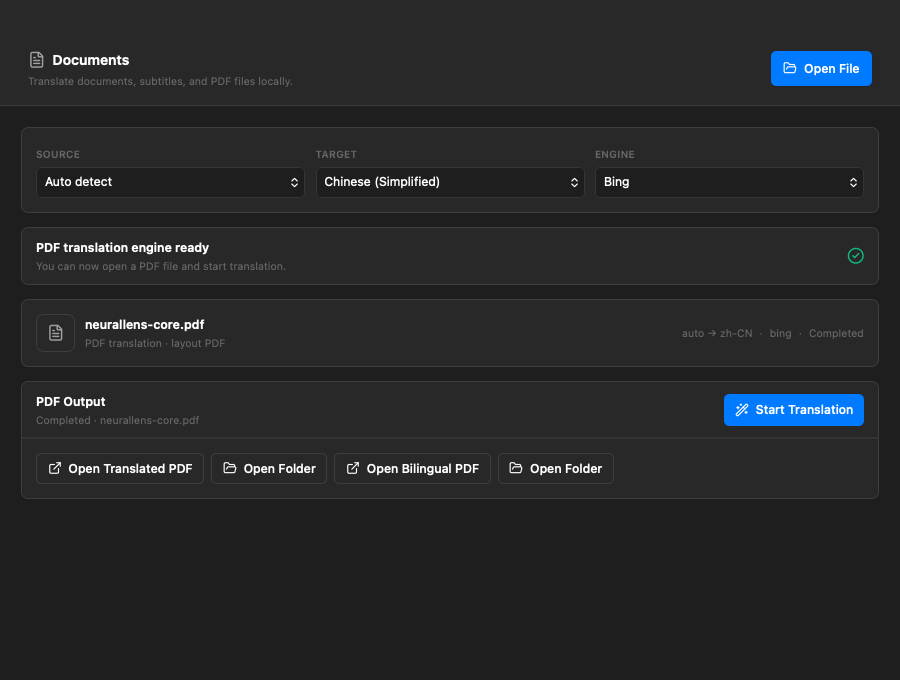
Example from the Mac app's English interface: an English test PDF translated into Simplified Chinese using Bing. Windows uses the same document workflow.
The PDF translation guide walks through component preparation, file selection and checking the output. PDF translation runs in the desktop app; use the Mac or Windows download section to get started.
DeepL also translates documents. Its supported formats and file allowances depend on the service and plan; check the official document translation page and current plan details.
Compare the workflow you need
| Your task | Neural Lens | DeepL |
|---|---|---|
| Translate selected text on Mac | Desktop text translation and configurable shortcuts | Mac app with system-wide shortcuts |
| Translate non-selectable screen text | Screenshot OCR workflow | Check the current app's supported capture workflow |
| Choose a translation engine | Built-in engines, configured cloud providers and a downloaded local model | DeepL translation service |
| Translate documents | Desktop PDF workflow with translated and bilingual exports | Document translation with plan-dependent formats and allowances |
| Understand costs | Desktop download is free; configured providers may charge for API usage | Free access and paid plans with different limits |
Try it with a page you already read
Download Neural Lens for Mac or Windows, then try selected text and a screenshot from the same page. For offline translation, download the local model and select it before testing. For a PDF, start with a short document and review the output before translating a longer one.
Read the PDF translation guide for that workflow, or visit support if you need help with setup. Pick the workflow that saves you steps while producing a translation you can check.