
Free Neural Lens: Desktop Features, Browser Extension and API Costs
Neural Lens is free to use on Mac and Windows. You do not need a NeuralLens subscription to use its desktop text translation, screenshot OCR, local text model or PDF translation workflow.
We originally announced the free desktop app on July 11, 2026. This guide was updated on October 24, 2026 to clarify what the app includes, which services need an internet connection and when an external provider may charge you. Free access to the app does not include paid usage of a cloud provider's API.
Pick a workflow for what you are reading
For text you can select, use the desktop translator or the separate browser extension. For text in an image, use screenshot OCR and check the recognized text before relying on the translation. For a PDF, open the desktop document window rather than the discontinued web PDF tool.
- Browser selection: the extension translates selected webpage text with Google or Bing, without an account or your own API key. The selected text goes to the engine you choose. The extension works independently of the desktop app and is not a full-page translation tool.
- Desktop built-in engines: choose an available online engine in the app. These requests need a connection; they are separate from local model translation.
- Your own cloud API: configure a supported provider, such as OpenAI, DeepSeek or Gemini, with the credentials that provider requires. Its prices and usage limits apply to your account with that service.
- Local text translation: download HY-MT1.5-1.8B in Settings, then select the offline engine. Text translation with that engine runs on your computer. Downloading the model, updating the app and using optional online services still need a connection.
Translation time and quality depend on the engine, computer and material. Compare names, numbers and terminology with the original instead of relying on a fixed speed or quality promise. See our privacy page before choosing an engine for sensitive material.
PDF translation has its own preparation and limits
In the desktop app, prepare the PDF translation component when prompted and select one PDF of up to 25MB. Choose the source and target languages and Google or Bing. The component processes the document locally, while text is sent to the selected online translation service. The offline text model is not a PDF engine option.
When the job finishes, open the translated PDF, bilingual PDF or output folder from the result buttons. Check reading order, tables, equations and numbers against the original. Start with a short extract when trying a new layout; preserving a page's structure does not guarantee a perfect result.
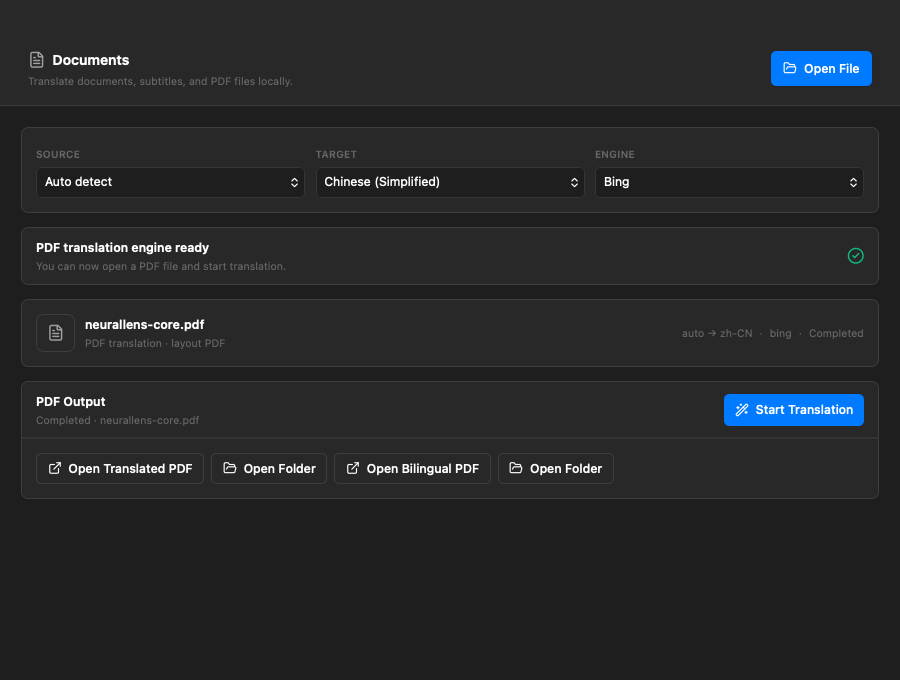
Actual example from the Mac app's English interface: an English test PDF translated into Simplified Chinese using Bing. Windows follows the same document workflow.
The PDF guide covers setup and checking the output. For selected text, OCR and offline models, read the desktop translation guide.
Download the app or add the extension
Use the download section for the current Apple Silicon Mac and Windows x64 packages. A native Intel Mac package is not currently available.
For webpage reading, the separate Neural Lens Selection Translator extension lets you select a passage, click the Neural Lens button and read the translation card. You can change between Google and Bing and copy the result. OCR, PDF translation and the local model belong to the desktop app.
If setup fails, contact support with your app version, operating system and the error message, excluding private material and API keys.